How to connect Imou cameras to Home Assistant with Imou Life Official
Imou Home Assistant allows you to manage cameras, streaming, alarms and automations via Imou Life Official. Here are the requirements and configuration.
Imou Home Assistant - Imou cameras can be integrated into Home AssistantthroughImou Life Official, an integration published by the Imou Open Platform team and installable via HACS. The solutionallowsto view video streams, use the controls available on the device and receive alarm events to create home automations. Operation is based on Imou's cloud API and requires dedicated application credentials, different from the password used in the Imou Life app. The availability of individual functions depends on the characteristics actually communicated by each model.Source:Share your Projects.
Imou Home Assistant: requirements and operation
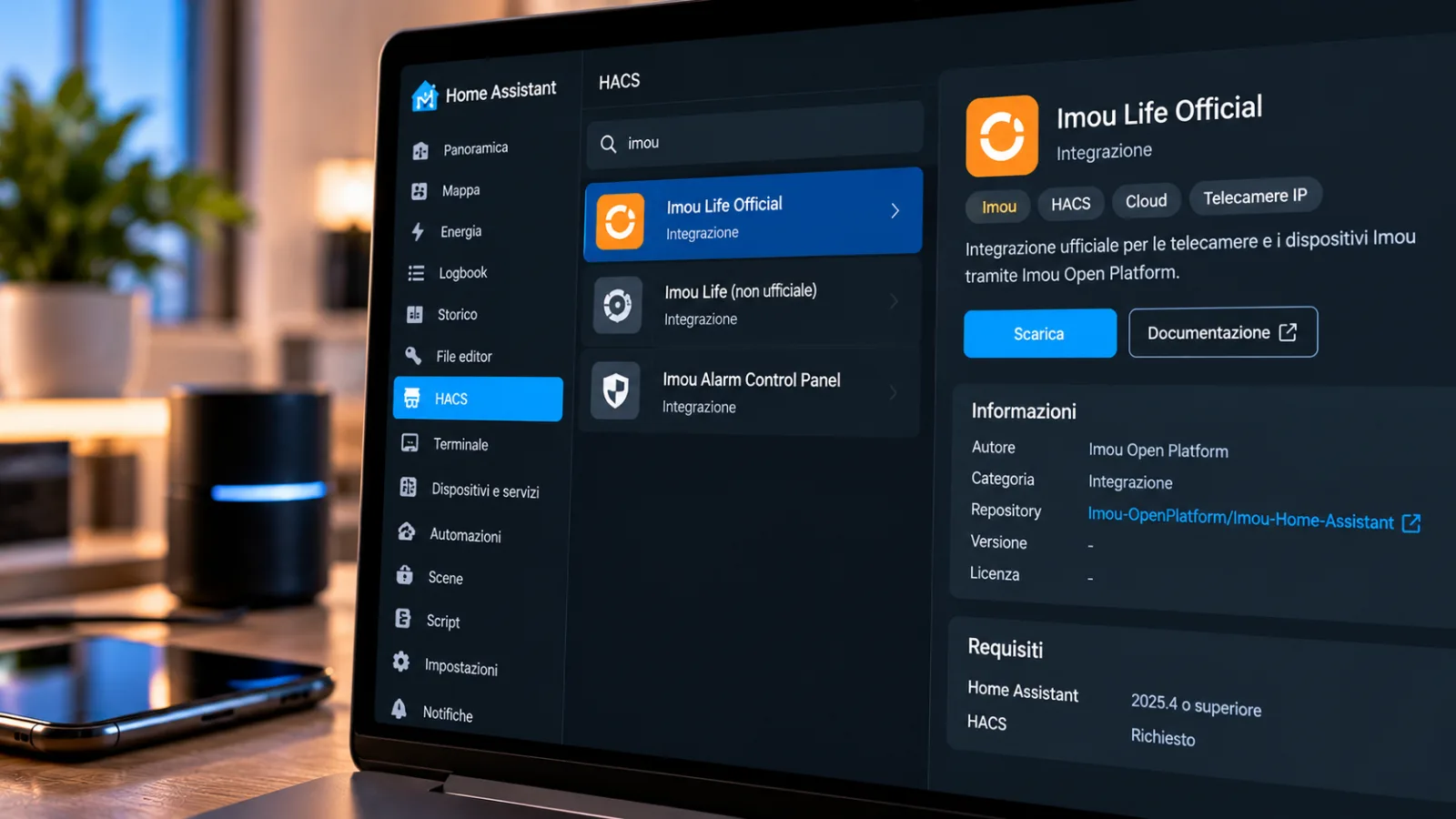
To use the integration you must haveHome Assistant 2025.4 or later, HACS and a camera already associated with an Imou Life account. Before proceeding, you need to check that the device is online in the manufacturer's application.
Imou Life Official accesses devices through an application registered on the Imou Open Platform cloud platform. The entities are generated based on the information returned by the APIs for the configured account.
This behavior avoids showing controls that the camera does not have. A fixed model, for example, has no buttons for rotating the lens, while a camera that does not communicate battery information does not generate a battery sensor.
Each lens and each channel of an NVR recorder has its own live view. Streaming uses the cloud and can therefore be accessible even when you are outside your home network.
Prepare Imou Open Platform and API credentials
The first step is to create an application on the international portalopen.imoulife.com, using the account associated with the cameras.
The necessary credentials can be found in the sectionControl Board → My App → App Information. Here you can find App ID and App secret, both of which are required when setting up the integration.
The App secret should be treated like a password. It is important to copy it without extra spaces, especially at the end of the value. If the secret is regenerated, Home Assistant will request a new authentication, while still maintaining the already configured integration entry.
Another fundamental parameter is the server region, which can be identified in the portal throughControl Board → Basic Information → My Information. The documented correspondence is as follows: East Asia uses Singapore, Central Europe uses Europe, and Western America uses North America.
An incorrect region may allow App ID acceptance but return an empty list of devices. An invalid App secret, however, triggers the reauthentication procedure.
Each App ID includes30,000 free API requests per month. Excess requests are invoiced according to the rates published on the platform. Periodic state updates consume this availability, and live playback also uses resources associated with the application.
The residual consumption can be consulted in the My Resources section of the portal. When availability runs out, Home Assistant can report it throughSettings → System → Repairs.
Install Imou Life Official via HACS
Once the credentials are prepared, the installation takes place directly from HACS. Just searchImou Life Official, download the integration and restart Home Assistant when prompted.
Then you have to open itSettings → Devices and Services → Add integration, select Imou Life Official and enter App ID and App secret. The procedure also requires choosing the region corresponding to the account's data center.
During configuration it is possible to select the cameras to be interrogated periodically. Unselected devices remain in the list, but are excluded from regular updates. The procedure can also be completed without selecting any camera.
You can finish setup even when your account doesn't yet contain any devices. Afterwards, throughConfigure → Bind a new device, you can pair a camera using the serial number and pairing code that can be retrieved from the device label or from the Imou Life app.
Streaming, sensors and camera controls
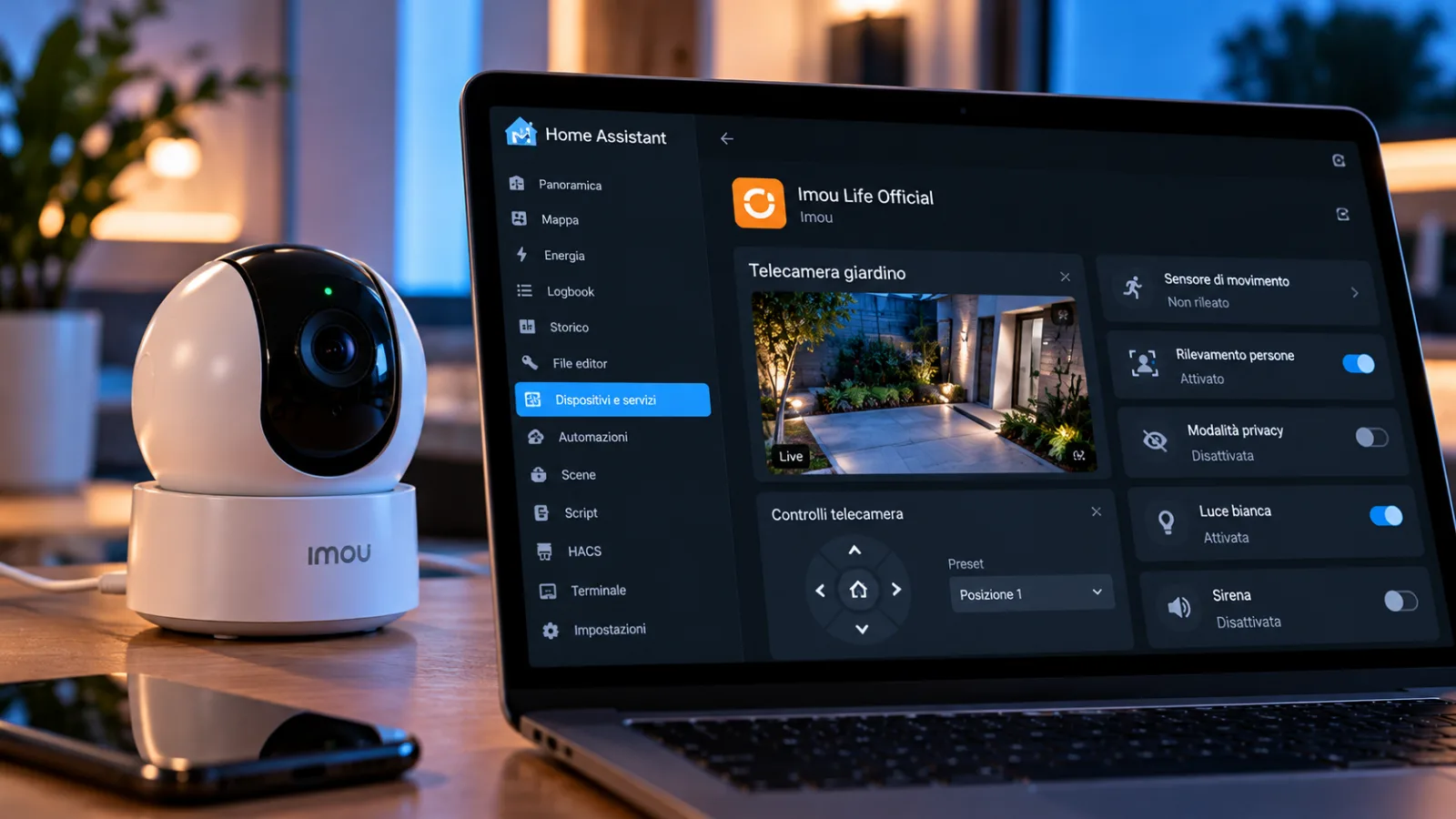
After connecting, Home Assistant creates entities corresponding to the capabilities declared by the device. The live view is exposed as a camera entity and can be used in dashboard tabs.
The resolution required for streaming is initially set to HD and can be managed throughConfigure → Polling and cameras.
An auto-displaying picture-entity card starts cloud streaming while remaining visible. On battery-powered cameras it is therefore advisable to avoid keeping it permanently open in a dashboard, because the flow can wake up the device and use resources as when viewing in the Imou Life app.
Entities that can be exposed include privacy mode, people detection, white light, default orientation points, and motion sensor. Their presence is not guaranteed on all models.
Privacy mode uses a switch that closes the lens, similar to the control found in the Imou Life app. People detection, on the other hand, has a switch dedicated to enabling the function: its status does not change automatically when someone crosses the frame.
For motion alarms, a binary_sensor entity is used, which can trigger after receiving a push notification. The sensor remains unavailable until push events are enabled and the relevant message types are included. Animal and vehicle alarms do not activate this specific sensor.
Motorized cameras may display directional buttons to control the orientation of the lens. Each press produces a short-term movement, configurable in the camera's default settings.
Orientation points saved in the Imou Life app are presented through a select entity. The integration allows you to recall a preset by its name, but does not read the current position of the lens: after a successful move, the selector can then continue to show the point choice message.
In models with lighting, white light is exposed as a light entity. Any siren can also be controlled without activating push notifications and, according to the guide, its status normally returns to deactivated after approximately 15 seconds, in line with the usual duration of the sound alarm managed by the firmware.
The entity identifiers depend on the name assigned to the device in the system. The documentation examples use a camera called Porch, but the actual names must be retrieved fromDeveloper Tools → States. There is no need to manually create missing entities when the template does not declare a certain capability.
Alarm events and automations in Home Assistant
One of the possibilities offered by Imou Life Official concerns the use of alarms in home automations. To receive these events you must enableConfigure → Alarm push and notificationsand make the callback URL used by the integration reachable from the Internet.
A purely local address, such as a URL belonging to the 192.168.1.x network, is not sufficient to receive calls from the cloud service.
Events are published in Home Assistant with the typeimou_life_alarm. The msg_type field identifies the category of the report: human indicates the detection of a person, while videoMotion corresponds to a change in the image.
Before using these values in an automation's filters, the guide recommends checking them throughDeveloper Tools → Events, observing an event actually received by your camera.
A documented example is turning on a camera's white light when a person is detected. The automation listens for the imou_life_alarm event with msg_type set to human and calls the light.turn_on action on the light entity.
After receiving a relevant push notification, the motion sensor can also remain active for approximately 15 seconds. This behavior is distinct from enabling people detection, which remains a camera setting.
If push notifications are not configured, some functions still continue to operate: the camera display, light controls, siren and preset selection do not depend on the activation of alarm events.
Project documentation is available in the repositoryImou-OpenPlatform/Imou-Home-Assistanton GitHub, where the configuration screens are also described. To use the integration correctly it is important to verify the functions actually exposed by your model, choose the appropriate cloud region and keep the consumption of API requests under control.


Commenti
Ancora nessun commento. Sii il primo a partecipare.