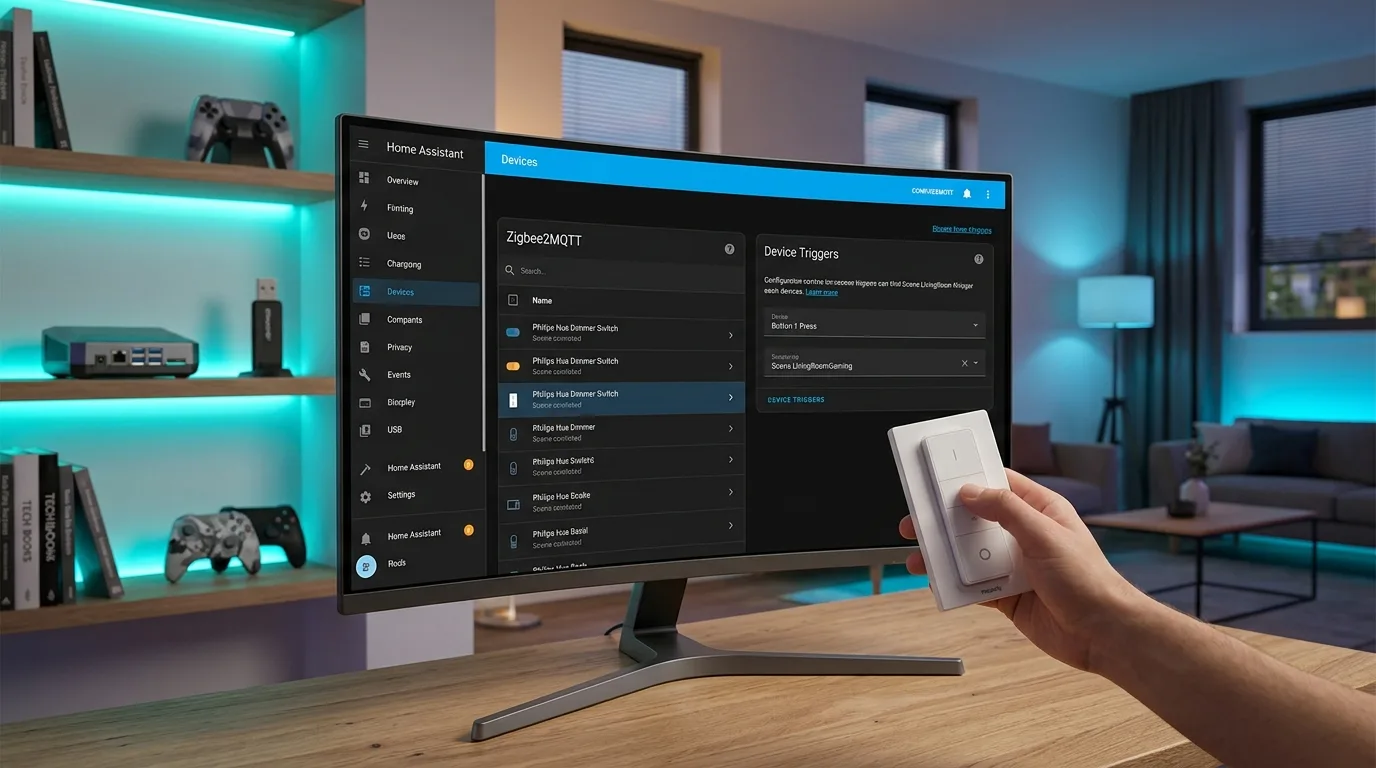
Home Assistant: Manage the Philips Hue Dimmer Switch with Zigbee2MQTT and Device Triggers
Learn how to optimize the Philips Hue Dimmer Switch in Home Assistant using Zigbee2MQTT and Device Triggers for advanced, personalized control.
Introduction to the Philips Hue Dimmer Switch and Zigbee2MQTT
Philips Hue Dimmer Switch Zigbee2MQTT is at the heart of the news: The Philips Hue Dimmer Switch is a versatile accessory for managing smart lighting, but its full potential can be unlocked through advanced integrations. By using Zigbee2MQTT (Z2M) with Home Assistant, you can overcome native device limitations and configure custom actions. The Home Assistant community has developed innovative solutions, including the "Ultimate Hue Remote Controller" blueprint, which leverages Device Triggers to simplify configuration and add features such as synthetic double-clicking, a feature not natively supported by the hardware. This approach eliminates the need to manually manage MQTT topics or enable hidden sensors, making integration more intuitive and frustration-free.
Useful Resources
The "Ultimate Hue Remote Controller" Blueprint
Philips Hue Dimmer Switch Zigbee2MQTT - The "Ultimate Hue Remote Controller" blueprint was designed specifically for the Philips Hue Dimmer Switch (both Gen 1 and Gen 2) and operates via Zigbee2MQTT. Its strong point lies in the use of Device Triggers, which allow you to select the remote control directly from a drop-down list, significantly simplifying the configuration process. Unlike previous solutions, you no longer need to manually enter MQTT topics or activate legacy sensors. The blueprint intelligently manages the actions of the four buttons (Upper, Up, Down, Lower), allowing you to assign functions to both single clicks and double clicks, as well as long presses (hold).
Installation prerequisites
In order to use this blueprint, some fundamental prerequisites are necessary:
- An installation of Home Assistant (version 2024.x or newer is recommended).
- Zigbee2MQTT configured and working.
- A Philips Hue Dimmer Switch successfully paired via Zigbee2MQTT.
Blueprint configuration
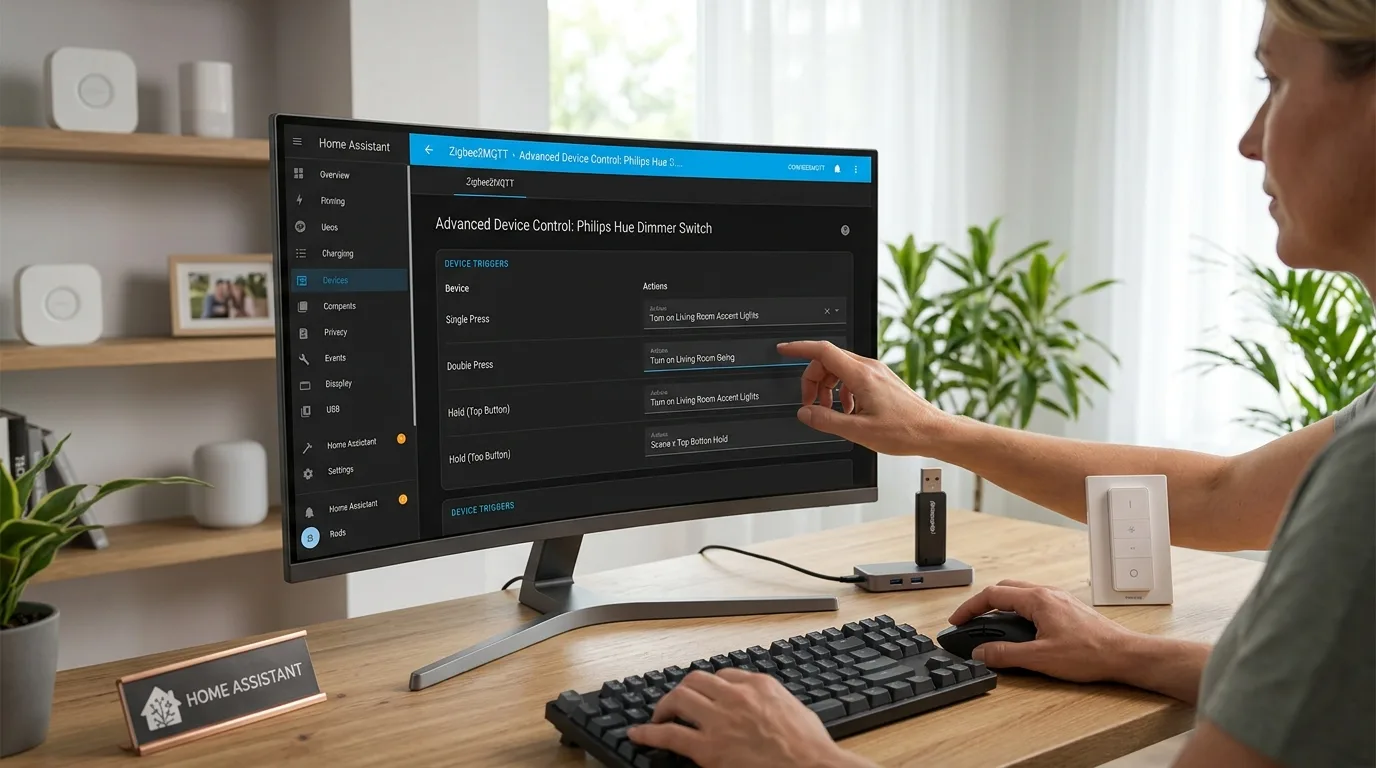
Philips Hue Dimmer Switch Zigbee2MQTT - Once the prerequisites are met, you can import the blueprint into Home Assistant. Configuration is guided and intuitive. You select the Philips Hue Remote device from the list of available MQTT devices. Next, you can customize the double click delay (double_click_delay), adjusting the sensitivity to make this action easier. Finally, for each of the four buttons, you can define the actions to be performed with a single click, a double click or a long press, using the action options available in Home Assistant.
blueprints:
  name: Ultimate Hue Remote Controller via Z2M
  description: >
    Configure Hue Remote buttons via Zigbee2MQTT with Device Triggers.

    **Features:**
    - Synthetic Double Click
    - Organized settings by button
    - Visual Section Headers

    **Compatible with:**
    - Gen 1 (Labels: "I", "O")
    - Gen 2 (Labels: "Power", "Hue")
  domain: automation

  inputs:
    remote:
      name: Philips Hue Remote
      description: Select your remote device.
      selector:
        devices:
          integration: mqtt
          manufacturer: Philips
          model: Hue dimmer switch

    double_click_delay:
      name: Double Click Delay (ms)
      description: >
        Time to wait for a second click.
        Lower = Lights turn on faster (less lag).
        Higher = Easier to perform a double click.
        Recommended: 400ms - 600ms.
      default: 500
      selector:
        number:
          min: 100
          max: 2000
          unit_of_measurement: ms
          mode: box

    # ----------------------------------------------------------------
    # TOP BUTTON
    # ----------------------------------------------------------------
    on_single_press:
      name: 🟢 Top Button - Single Click
      description: 'Symbol: "I" or "Power"'
      default: []
      selector: { action: {} }
    on_double_press:
      name: 🟢 Top Button - Double Click
      description: 'Symbol: "I" or "Power"'
      default: []
      selector: { action: {} }
    on_hold:
      name: 🟢 Top Button - Hold
      description: 'Symbol: "I" or "Power"'
      default: []
      selector: { action: {} }

    # ----------------------------------------------------------------
    # UP BUTTON
    # ----------------------------------------------------------------
    up_single_press:
      name: 🔆 Up Button - Single Click
      description: 'Symbol: Large Sun (Brighten)'
      default: []
      selector: { action: {} }
    up_double_press:
      name: 🔆 Up Button - Double Click
      description: 'Symbol: Large Sun (Brighten)'
      default: []
      selector: { action: {} }
    up_hold:
      name: 🔆 Up Button - Hold
      description: 'Symbol: Large Sun (Brighten)'
      default: []
      selector: { action: {} }

    # ----------------------------------------------------------------
    # DOWN BUTTON
    # ----------------------------------------------------------------
    down_single_press:
      name: 🔅 Down Button - Single Click
      description: 'Symbol: Small Sun (Dim)'
      default: []
      selector: { action: {} }
    down_double_press:
      name: 🔅 Down Button - Double Click
      description: 'Symbol: Small Sun (Dim)'
      default: []
      selector: { action: {} }
    down_hold:
      name: 🔅 Down Button - Hold
      description: 'Symbol: Small Sun (Dim)'
      default: []
      selector: { action: {} }

    # ----------------------------------------------------------------
    #BOTTOM BUTTON
    # ----------------------------------------------------------------
    off_single_press:
      name: 🔴 Bottom Button - Single Click
      description: 'Symbol: "O" or "Hue" Logo'
      default: []
      selector: { action: {} }
    off_double_press:
      name: 🔴 Bottom Button - Double Click
      description: 'Symbol: "O" or "Hue" Logo'
      default: []
      selector: { action: {} }
    off_hold:
      name: 🔴 Bottom Button - Hold
      description: 'Symbol: "O" or "Hue" Logo'
      default: []
      selector: { action: {} }

# Mode Single is required to prevent "Ghost Clicks" during double click detection
fashions: single
max_exceeded: silent

triggers:
  # Triggers for Press (Release) and Hold
  - platform: device
    domain: mqtt
    device_id: !input remote
    type: action
    subtype: on_press_release
    id: on_press
  - platform: device
    domain: mqtt
    device_id: !input remote
    type: action
    subtype: on_hold
    id: on_hold

  - platform: device
    domain: mqtt
    device_id: !input remote
    type: action
    subtype: up_press_release
    id: up_press
  - platform: device
    domain: mqtt
    device_id: !input remote
    type: action
    subtype: up_hold
    id: up_hold

  - platform: device
    domain: mqtt
    device_id: !input remote
    type: action
    subtype: down_press_release
    id: down_press
  - platform: device
    domain: mqtt
    device_id: !input remote
    type: action
    subtype: down_hold
    id: down_hold

  - platform: device
    domain: mqtt
    device_id: !input remote
    type: action
    subtype: off_press_release
    id: off_press
  - platform: device
    domain: mqtt
    device_id: !input remote
    type: action
    subtype: off_hold
    id: off_hold

action:
  - choose:
      # --- TOP BUTTON LOGIC ---
      - conditions: "{{ trigger.id == 'on_press' }}"
        sequence:
          - wait_for_trigger:
              - platform: device
                domain: mqtt
                device_id: !input remote
                type: action
                subtype: on_press_release
            timeout:
              milliseconds: !input double_click_delay
            continue_on_timeout: true
          - choose:
              - conditions: "{{ wait.trigger != none }}"
                sequence: !input on_double_press
              - conditions: "{{ wait.trigger == none }}"
                sequence: !input on_single_press
      - conditions: "{{ trigger.id == 'on_hold' }}"
        sequence: !input on_hold

      # --- UP BUTTON LOGIC ---
      - conditions: "{{ trigger.id == 'up_press' }}"
        sequence:
          - wait_for_trigger:
              - platform: device
                domain: mqtt
                device_id: !input remote
                type: action
                subtype: up_press_release
            timeout:
              milliseconds: !input double_click_delay
            continue_on_timeout: true
          - choose:
              - conditions: "{{ wait.trigger != none }}"
                sequence: !input up_double_press
              - conditions: "{{ wait.trigger == none }}"
                sequence: !input up_single_press
      - conditions: "{{ trigger.id == 'up_hold' }}"
        sequence: !input up_hold

      # --- DOWN BUTTON LOGIC ---
      - conditions: "{{ trigger.id == 'down_press' }}"
        sequence:
          - wait_for_trigger:
              - platform: device
                domain: mqtt
                device_id: !input remote
                type: action
                subtype: down_press_release
            timeout:
              milliseconds: !input double_click_delay
            continue_on_timeout: true
          - choose:
              - conditions: "{{ wait.trigger != none }}"
                sequence: !input down_double_press
              - conditions: "{{ wait.trigger == none }}"
                sequence: !input down_single_press
      - conditions: "{{ trigger.id == 'down_hold' }}"
        sequence: !input down_hold

      # --- BOTTOM BUTTON LOGIC ---
      - conditions: "{{ trigger.id == 'off_press' }}"
        sequence:
          - wait_for_trigger:
              - platform: device
                domain: mqtt
                device_id: !input remote
                type: action
                subtype: off_press_release
            timeout:
              milliseconds: !input double_click_delay
            continue_on_timeout: true
          - choose:
              - conditions: "{{ wait.trigger != none }}"
                sequence: !input off_double_press
              - conditions: "{{ wait.trigger == none }}"
                sequence: !input off_single_press
      - conditions: "{{ trigger.id == 'off_hold' }}"
        sequence: !input off_hold
Advanced Features: Double Click and Hold Management
One of the most popular features of this blueprint is the ability to implement double-clicking for all four buttons, a feature that the remote itself does not offer. This is achieved through a wait mechanism (wait_for_trigger) with a configurable timeout. If a second click is detected within this time interval, the double click action is triggered; otherwise, the single click action is performed. Furthermore, the blueprint intelligently manages the conflict between "press" and "long press" (hold), ensuring that individual clicks are activated only when the button is released, thus avoiding accidental activations during a hold intention. The "single" mode is used to prevent "ghost clicks" during double click detection.
blueprints:
  name: Ultimate Hue Remote Controller via Z2M
  description: >
    Configure Hue Remote buttons via Zigbee2MQTT with Device Triggers.

    **Features:**
    - Synthetic Double Click
    - Organized settings by button
    - Visual Section Headers

    **Compatible with:**
    - Gen 1 (Labels: "I", "O")
    - Gen 2 (Labels: "Power", "Hue")
  domain: automation

  inputs:
    remote:
      name: Philips Hue Remote
      description: Select your remote device.
      selector:
        devices:
          manufacturer: Philips

    double_click_delay:
      name: Double Click Delay (ms)
      description: >
        Time to wait for a second click.
        Lower = Lights turn on faster (less lag).
        Higher = Easier to perform a double click.
        Recommended: 400ms - 600ms.
      default: 500
      selector:
        number:
          min: 100
          max: 2000
          unit_of_measurement: ms
          mode: box

    # ----------------------------------------------------------------
    # TOP BUTTON
    # ----------------------------------------------------------------
    on_single_press:
      name: 🟢 Top Button - Single Click
      description: 'Symbol: "I" or "Power"'
      default: []
      selector: { action: {} }
    on_double_press:
      name: 🟢 Top Button - Double Click
      description: 'Symbol: "I" or "Power"'
      default: []
      selector: { action: {} }
    on_hold:
      name: 🟢 Top Button - Hold
      description: 'Symbol: "I" or "Power"'
      default: []
      selector: { action: {} }

    # ----------------------------------------------------------------
    # UP BUTTON
    # ----------------------------------------------------------------
    up_single_press:
      name: 🔆 Up Button - Single Click
      description: 'Symbol: Large Sun (Brighten)'
      default: []
      selector: { action: {} }
    up_double_press:
      name: 🔆 Up Button - Double Click
      description: 'Symbol: Large Sun (Brighten)'
      default: []
      selector: { action: {} }
    up_hold:
      name: 🔆 Up Button - Hold
      description: 'Symbol: Large Sun (Brighten)'
      default: []
      selector: { action: {} }

    # ----------------------------------------------------------------
    # DOWN BUTTON
    # ----------------------------------------------------------------
    down_single_press:
      name: 🔅 Down Button - Single Click
      description: 'Symbol: Small Sun (Dim)'
      default: []
      selector: { action: {} }
    down_double_press:
      name: 🔅 Down Button - Double Click
      description: 'Symbol: Small Sun (Dim)'
      default: []
      selector: { action: {} }
    down_hold:
      name: 🔅 Down Button - Hold
      description: 'Symbol: Small Sun (Dim)'
      default: []
      selector: { action: {} }

    # ----------------------------------------------------------------
    #BOTTOM BUTTON
    # ----------------------------------------------------------------
    off_single_press:
      name: 🔴 Bottom Button - Single Click
      description: 'Symbol: "O" or "Hue" Logo'
      default: []
      selector: { action: {} }
    off_double_press:
      name: 🔴 Bottom Button - Double Click
      description: 'Symbol: "O" or "Hue" Logo'
      default: []
      selector: { action: {} }
    off_hold:
      name: 🔴 Bottom Button - Hold
      description: 'Symbol: "O" or "Hue" Logo'
      default: []
      selector: { action: {} }

# Mode Single is required to prevent "Ghost Clicks" during double click detection
fashions: single
max_exceeded: silent

triggers:
  # Triggers for Press (Release) and Hold
  - platform: device
    domain: mqtt
    device_id: !input remote
    type: action
    subtype: on_press_release
    id: on_press
  - platform: device
    domain: mqtt
    device_id: !input remote
    type: action
    subtype: on_hold
    id: on_hold

  - platform: device
    domain: mqtt
    device_id: !input remote
    type: action
    subtype: up_press_release
    id: up_press
  - platform: device
    domain: mqtt
    device_id: !input remote
    type: action
    subtype: up_hold
    id: up_hold

  - platform: device
    domain: mqtt
    device_id: !input remote
    type: action
    subtype: down_press_release
    id: down_press
  - platform: device
    domain: mqtt
    device_id: !input remote
    type: action
    subtype: down_hold
    id: down_hold

  - platform: device
    domain: mqtt
    device_id: !input remote
    type: action
    subtype: off_press_release
    id: off_press
  - platform: device
    domain: mqtt
    device_id: !input remote
    type: action
    subtype: off_hold
    id: off_hold

action:
  - choose:
      # --- TOP BUTTON LOGIC ---
      - conditions: "{{ trigger.id == 'on_press' }}"
        sequence:
          - wait_for_trigger:
              - platform: device
                domain: mqtt
                device_id: !input remote
                type: action
                subtype: on_press_release
            timeout:
              milliseconds: !input double_click_delay
            continue_on_timeout: true
          - choose:
              - conditions: "{{ wait.trigger != none }}"
                sequence: !input on_double_press
              - conditions: "{{ wait.trigger == none }}"
                sequence: !input on_single_press
      - conditions: "{{ trigger.id == 'on_hold' }}"
        sequence: !input on_hold

      # --- UP BUTTON LOGIC ---
      - conditions: "{{ trigger.id == 'up_press' }}"
        sequence:
          - wait_for_trigger:
              - platform: device
                domain: mqtt
                device_id: !input remote
                type: action
                subtype: up_press_release
            timeout:
              milliseconds: !input double_click_delay
            continue_on_timeout: true
          - choose:
              - conditions: "{{ wait.trigger != none }}"
                sequence: !input up_double_press
              - conditions: "{{ wait.trigger == none }}"
                sequence: !input up_single_press
      - conditions: "{{ trigger.id == 'up_hold' }}"
        sequence: !input up_hold

      # --- DOWN BUTTON LOGIC ---
      - conditions: "{{ trigger.id == 'down_press' }}"
        sequence:
          - wait_for_trigger:
              - platform: device
                domain: mqtt
                device_id: !input remote
                type: action
                subtype: down_press_release
            timeout:
              milliseconds: !input dou
Integration with Home Assistant
Blueprint integration into Home Assistant is straightforward. After importing it, proceed with the configuration by selecting your Philips Hue Dimmer Switch paired via MQTT. The blueprint uses Device Triggers specific to the MQTT domain, associating actions such as `on_press_release`, `on_hold`, `up_press_release`, etc., to their respective configurable inputs. This Device Triggers-based approach makes configuration more robust and less error-prone than directly managing MQTT topics, ensuring a fluid and customizable user experience for home automation control.
Updating and Customization
The “Ultimate Hue Remote Controller” blueprint offers a high degree of customization. Users can freely define actions forEverything is finetype of pressure (single, double, hold) for each button, connecting them to complex home automation scenarios, activating lights, adjusting brightness or any other automation available in Home Assistant. The ability to adjust the double click delay allows you to adapt the behavior of the remote control to individual preferences.

Commenti
Ancora nessun commento. Sii il primo a partecipare.