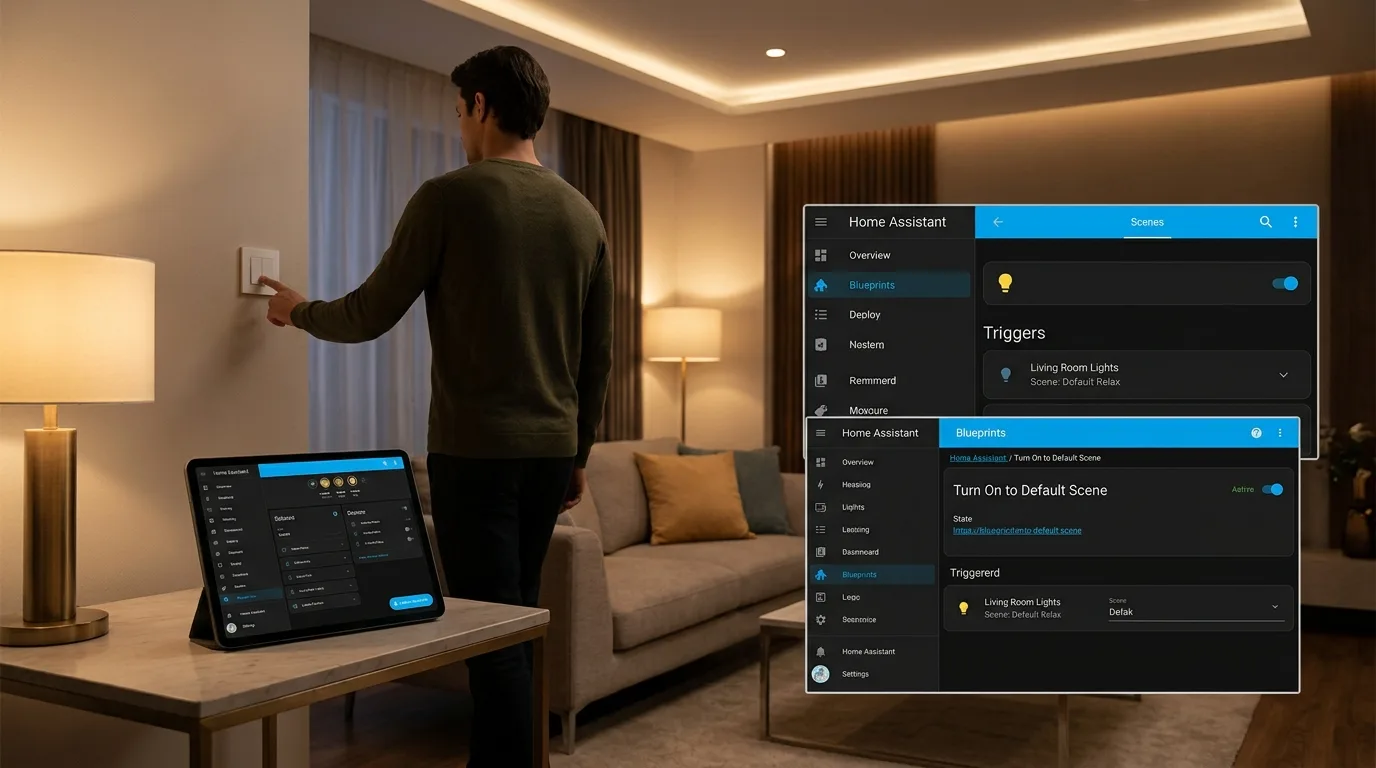
Home Assistant: Turn on default scenes with the "Turn On to Default Scene" blueprint
Check out the "Turn On to Default Scene" blueprint for Home Assistant, which automatically activates default scenes when a device is turned on
Home Assistant is enriched with a new tool for managing home automations: the "Turn On to Default Scene" blueprint. This component is designed to make it easy to activate predefined scenes, automatically reacting to the activation of lights, switches or booleans from external sources such as apps, physical switches or voice commands. The goal is to ensure that the home environment is always configured according to the user's preferences, even when actions are initiated outside of normal workflows.automation.Source:Blueprints Exchange.
What is the "Turn On to Default Scene" blueprint?
Home Assistant blueprint scene - The "Turn On to Default Scene" blueprint is a solution for Home Assistant that allows you to associate the action of turning on a device (light, switch, boolean input) with the immediate activation of a specific scene. This means that, for example, if you turn on a light via a wall switch, the Home Assistant system will not only turn on the light, but also activate a pre-set scene, such as "Relaxing Evening" or "Reading". Its usefulness lies in the ability to synchronize physical or vocal actions with desired scene configurations, maintaining a consistent user experience.
Key features of the blueprint
External activation synchronization
The cornerstone functionality of this blueprint is the ability to detect when a monitored device goes from “off” to “on” via external triggers. These may include the use of physical switches, voice commands given to assistants such as Alexa or Google Assistant, or actions performed via dedicated applications. As soon as this state change is detected, the blueprint commands the activation of the configured default scene, ensuring that the home environment instantly adapts to the user's preferences.
Optional counter reset
For users using this blueprint in combination with the "Button Scene Cycling and Off Control", an optional counter synchronization feature is available. When the device is powered on externally, the blueprint can automatically reset a helper counter to zero. This mechanism is essential to keep the scene activation sequence managed by the "Button Scene Cycling" blueprint synchronized, ensuring that the scene cycle always starts from the first element, regardless of how the device is activated.
Multi-domain compatibility
Home Assistant blueprint scene - The blueprint was designed to be versatile and compatible with different types of smart devices. It can monitor smart switches, lights and Boolean inputs, making it a flexible tool for different home automation needs. This expanded compatibility allows users to easily integrate it into their existing setups without having to replace hardware.
Prerequisites for advanced use
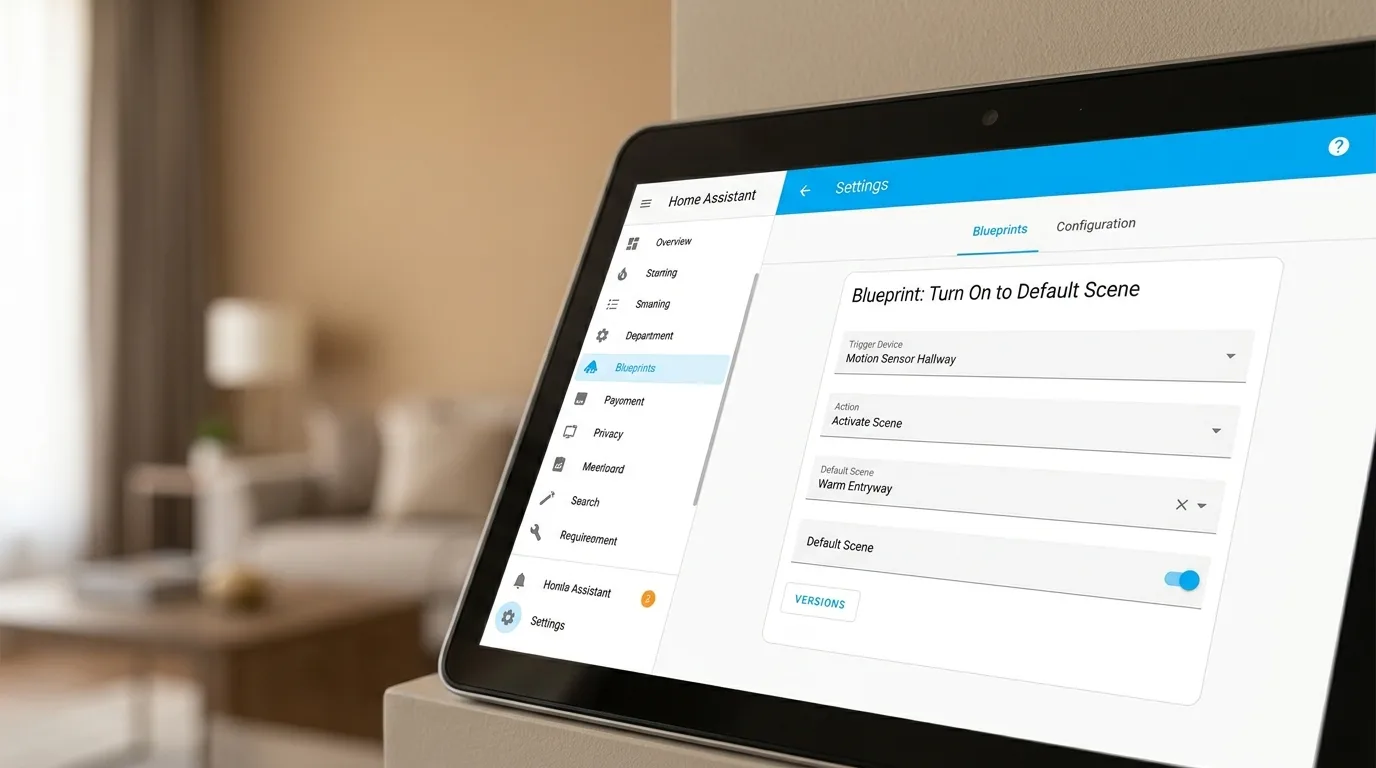
If you intend to use the counter reset functionality, you must have previously created a "Counter" type helper in Home Assistant. This is done by navigating to Settings > Devices and Services > Helpers, clicking on "Create Helper" and selecting "Counter". It is important to set the initial value to 0 and configure the step, minimum and maximum values according to your cyclical needs. However, if you are using the blueprint only as a standalone tool, no additional helper is required and the companion section can be left blank.
Input configuration
Configuring the blueprint requires defining some key parameters:
- Target Device: The entity (switch, light, input_boolean) to monitor for external turn-on events.
- Default Scene: The scene entity to activate when the target device is turned on.
- Counter Helper (Optional): An optional counter entity to reset to 0. Should be left blank if the blueprint is used in standalone mode.
Installing the blueprint
Installing the blueprint can be done in several ways, depending on the user's preference.
Method 1: Direct import
The simplest method is to use the provided import badge, which allows you to integrate your blueprint directly into your Home Assistant instance with just one click.
Method 2: Manual installation (file)
You can download or clone the raw blueprint YAML file from a repository (for example, from GitHub). Next, the file should be placed in the Home Assistant blueprints folder (typicallyconfig/blueprints/automation/) and renamed totarget_turn_on_synchronizer.yaml. After saving the file, you need to reload your automations or restart Home Assistant.
Method 3: Manual Installation (Dashboard URL)
A smoother alternative to manual installation via file is to use the Home Assistant blueprints dashboard. By copying the URL of the blueprint YAML file (for example, from GitHub) and pasting it into the "Import Blueprint" button in the Automations & Scenes > Blueprints section, you can follow the on-screen instructions to complete the import.
Related Blueprint: "Button Scene Cycling and Off Control"
This blueprint is closely related to "Button Scene Cycling and Off Control", another useful tool for scene management. Integration between the two allows for more sophisticated scene control systems, where external activation of a device not only sets the desired scene, but also ensures that button-controlled scene cycles always remain in sync, providing a smooth and predictable user experience.


Commenti
Ancora nessun commento. Sii il primo a partecipare.